

The tool page
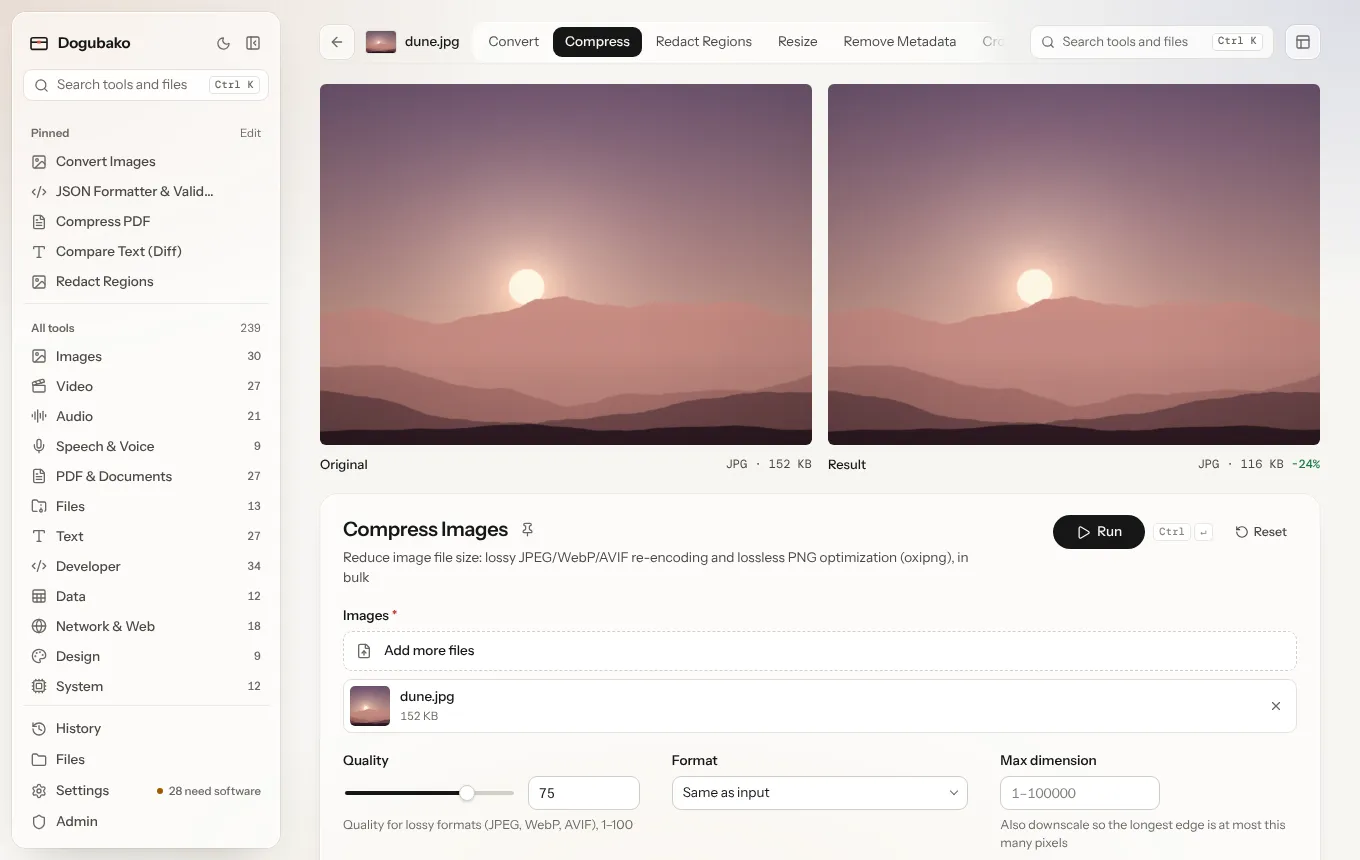
Every tool opens on the same kind of page, built from the tool’s spec. A few tools add a visual editor on top.
The tool row
Section titled “The tool row”The row across the top holds:
- Back, to where you came from.
- The file chip: the file you are working on. Hover it to see every file name when there are several.
- Tabs for the file’s other tools. Jump from Compress to Convert to Strip metadata without starting over. The next tool receives the result of this one, or the original if you prefer (see Layout). The last tab lists every tool for the file. A tool that takes no file (a generator or a formatter, say) shows the other tools in its category instead, pinned ones first.
- Search and the Layout menu.
The stage
Section titled “The stage”When a tool works on a file, the stage shows the original and the result side by side, with how much the size changed. Images, video, audio and PDFs preview inline. Switch to Result only in the Layout menu if you want more room.
Settings
Section titled “Settings”Below the stage (or beside it) is the settings panel:
- The tool’s name, a pin button, and a one-line description.
- Where it runs: Runs on this device in the desktop app, or Runs on this server when you use a self-hosted instance.
- The tool id, such as
image.compress, which is the same in the CLI, API and MCP. - The form. Common options come first; rarer ones are under Advanced options, which shows how many there are and how many you changed. Some options only appear when another option makes them relevant.
- Run (⌘ Enter or Ctrl Enter). Long jobs show progress and can be cancelled.
If the tool needs an engine or model that isn’t installed, a notice at the top says which one and gives the install command to copy. If it doesn’t run on your operating system at all, the notice says so.
Turn on Remember tool options in Settings to restore each tool’s last settings next time. Files and secrets are never remembered.
Live tools
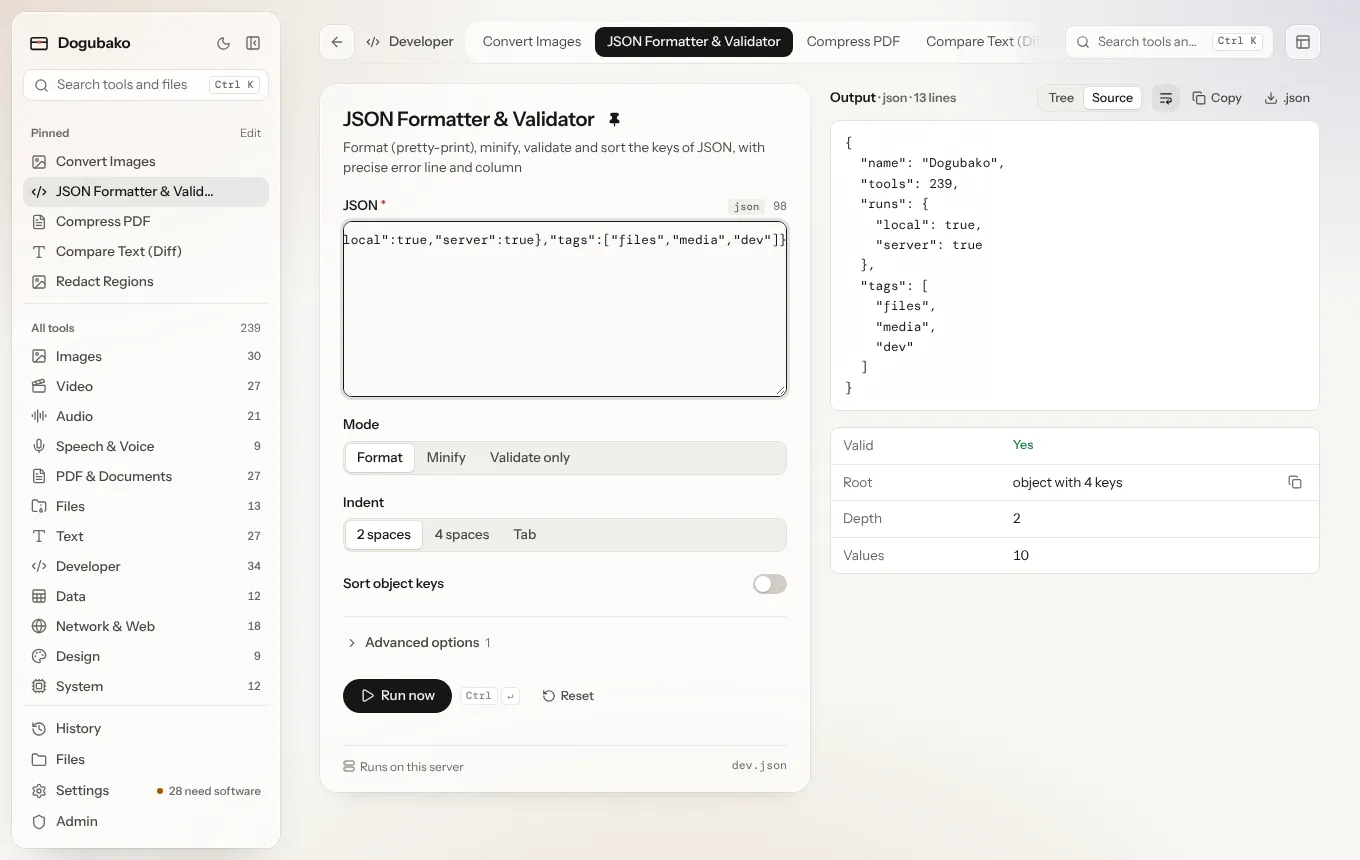
Section titled “Live tools”Fast text and developer tools, such as the JSON formatter, case converter or Base64 encoder, are live: they re-run as you type, with the output beside the input. Live runs are not added to your history. Run now forces a run.
Special editors
Section titled “Special editors”Some tools have a purpose-built interface:
| Tool | Editor |
|---|---|
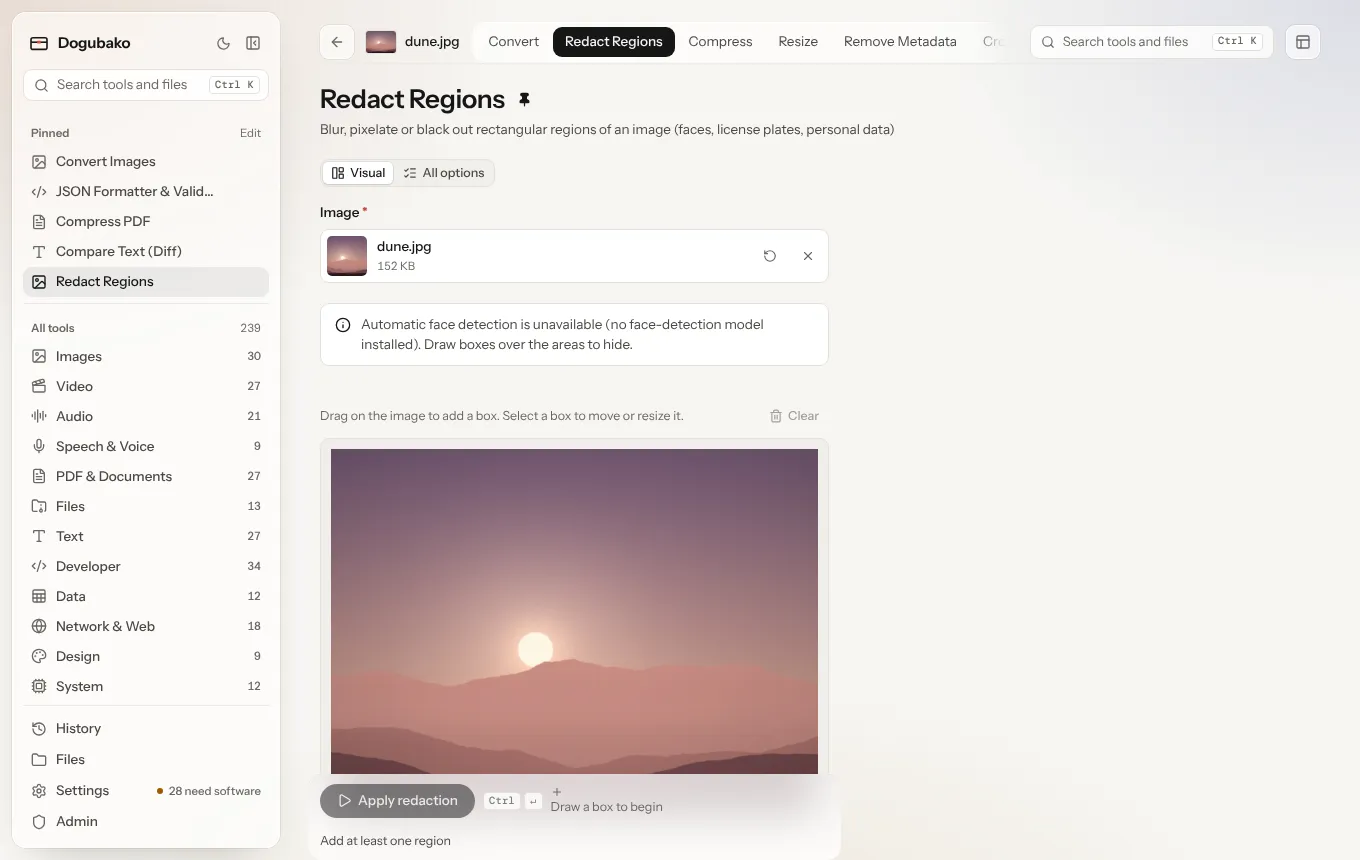
| Face blur and image redaction | Boxes over the image that you can draw, move and delete; detected faces are filled in for you to correct |
| Crop | Drag a crop box over the image |
| Regex tester | Matches highlighted in the text as you type, with groups |
| QR codes | A live preview of the code while you change its settings |
| Color tools | Live swatches as you pick colors |
| Diff tools | Two inputs side by side and the rendered difference; text re-runs live |
| System dashboard | Auto-refreshing CPU, memory, disk and battery panels |
The crop and redaction editors use the same layout as every other tool: the image you edit is the stage, the settings sit in the panel beside or below it, and the result appears underneath. Switch between Visual and All options to see the full form.
Layout
Section titled “Layout”The Layout menu on the tool row changes how every tool page is arranged. It is saved on this device.
| Setting | Options |
|---|---|
| Controls | Below (default), Left or Right of the stage |
| Preview | Side by side (default) or Result only |
| Tool row shows | Tools for the file (default) or Pinned tools |
| Next tool works on | The result (default) or The original |