

Desktop app
The desktop app is a Tauri 2 shell around the same web interface. It calls the engine in-process: there is no HTTP server, no open port and no background service. When the window is closed, nothing of Dogubako is running.
Released builds are for macOS 15 or newer on Apple silicon. The app also builds and runs on Windows and Linux, but there are no installers for them yet; see Building.
What’s different from the web app
Section titled “What’s different from the web app”| Desktop app | Self-hosted web app | |
|---|---|---|
| Where tools run | On this computer | On the server |
| Accounts | None | Required (owner, admins, users, agents) |
| File inputs | Local paths; drag files from your file manager | Uploaded to the server, addressed by id |
| Outputs | Written to the outputs folder; Save… copies them anywhere | Downloaded from the server; expire after the retention period |
| History | Stored on this device (can be turned off) | Stored per account on the server |
| Pages | No Files, Account or Admin pages | Files, Account and (for admins) Admin |
| Permissions | You are trusted like your own shell | Granted per account and token |
Where files go
Section titled “Where files go”Dogubako keeps its data in one per-user folder:
| System | Folder |
|---|---|
| macOS | ~/Library/Application Support/Dogubako |
| Windows | %APPDATA%\Dogubako |
| Linux | $XDG_DATA_HOME/dogubako, usually ~/.local/share/dogubako |
Inside it:
| Path | Holds |
|---|---|
outputs/<run id>/ |
The output files of each run |
models/ |
Downloaded models |
engines/ |
Engines downloaded on demand (macOS) |
extensions/ |
Your extension manifests and trusted.toml |
bin/ |
Engine binaries you want Dogubako to prefer over your PATH |
Set DOGUBAKO_HOME to use a different folder. Files you paste or drag in from
a web page (which have no path on disk) are staged in your system’s temporary
folder.
How it finds engines
Section titled “How it finds engines”On macOS, the app manages most engines itself:
FFmpeg, qpdf, Poppler, ExifTool and 7-Zip are built in, and ImageMagick,
Tesseract, Ghostscript, Real-ESRGAN, Pandoc and whisper.cpp download into
~/Library/Application Support/Dogubako/engines with one click. For those
engines the app uses only its own copies.
For every other engine (LibreOffice, Piper, rembg, and all engines in builds without the managed set, such as development builds or other platforms), Dogubako looks in this order:
- the path in
DOGUBAKO_<ID>_PATH, for exampleDOGUBAKO_FFMPEG_PATH(this overrides a managed engine too); - the
bin/folder above; - your
PATH; - on macOS, the usual Homebrew and MacPorts folders:
/opt/homebrew/bin,/usr/local/binand/opt/local/bin.
The last step matters because apps opened from the Dock or Finder get a
minimal PATH that leaves those folders out.
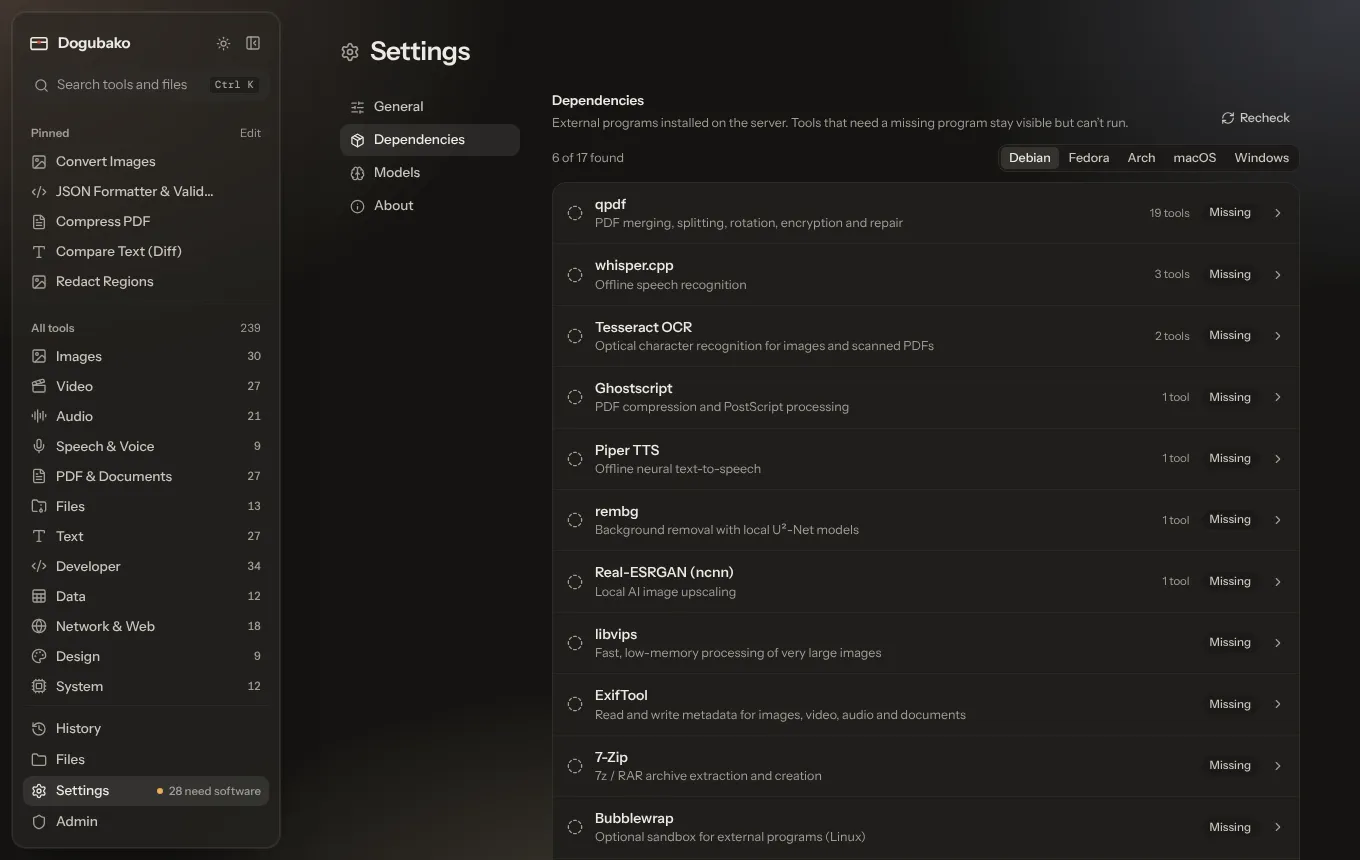
Settings → Dependencies shows what was found, the version, and the install command for your system. If you install an engine while Dogubako is open, click refresh there.
Drag and drop
Section titled “Drag and drop”Drag files from your file manager onto a file field to fill it, or anywhere else in the window to open the drop screen. Dropped files are used in place; Dogubako never modifies its inputs unless a tool explicitly says it will (such as batch rename with apply).
Privacy
Section titled “Privacy”Your files are processed on this computer. The only network traffic comes from tools whose job is the network (DNS lookups, HTTP header checks and so on), from model and engine downloads you start yourself, and from plain words if you turn it on, which sends your request, file names and tool results (not the files) to the model provider you chose. There is no telemetry.