

Home and the bench
Home is where you start anything. Everything on it can be rearranged or turned off in Customize home.
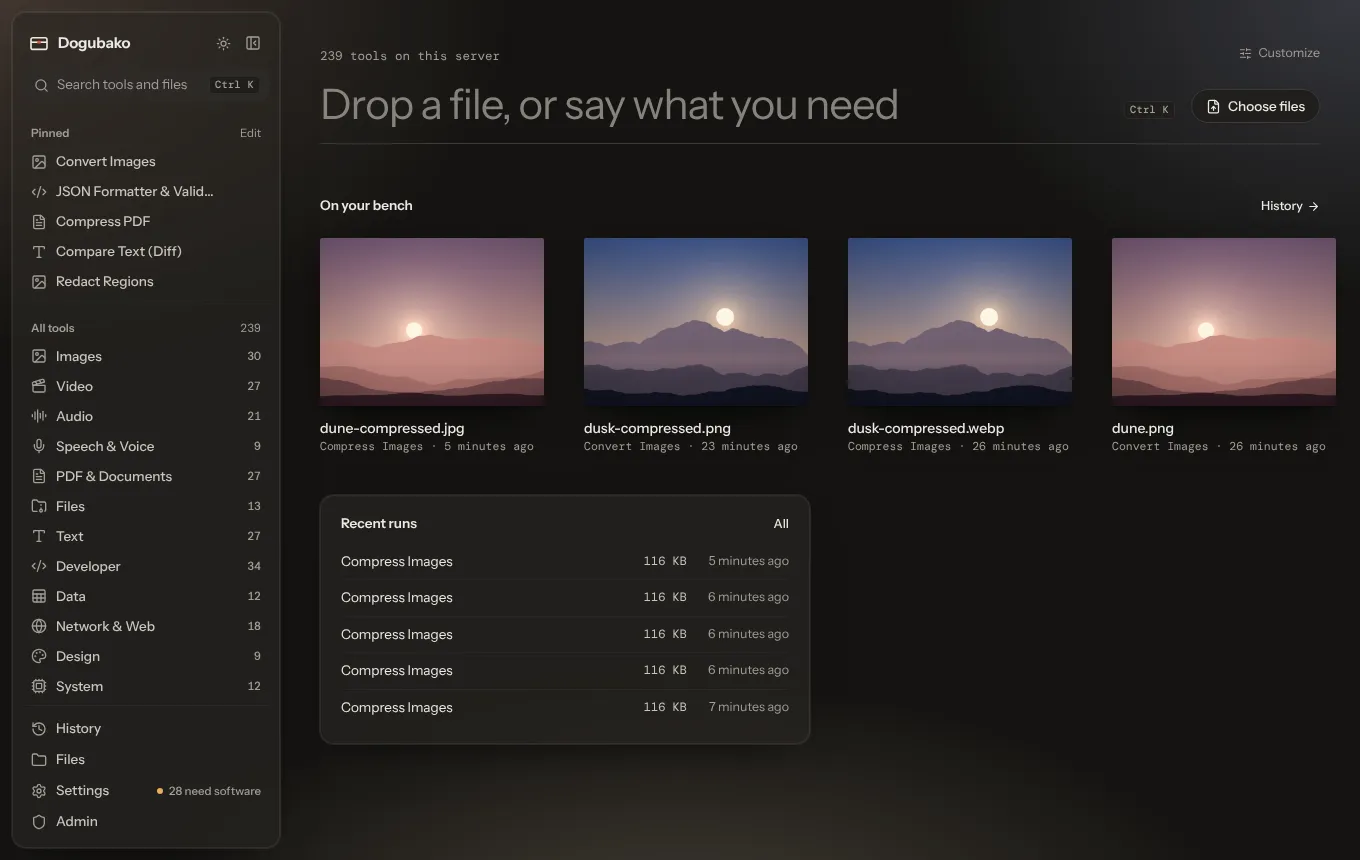
The big input
Section titled “The big input”The input at the top shows how many tools are available and where they run (“on this device” in the desktop app, or on your server). It is three things at once:
- Type what you need, such as
merge pdforuuid, and the search opens with what you typed. - Drop a file on it, or anywhere on the window, to go to the drop screen.
- Click Choose files to pick files with your system’s file dialog.
On your bench
Section titled “On your bench”The bench is a shelf of the files you worked on lately: the outputs of your recent runs. Each file is drawn as the thing it is, so a photo shows its picture, a PDF looks like a page, audio shows a waveform, a spreadsheet looks like a grid and an archive looks like a box. The name, size and how long ago it was made are underneath.
Click a file on the bench to open it on the drop screen and keep going, for example to compress the image you just cropped. Bench files come from your run history, so on a server they disappear when their retention period ends (24 hours by default).
You can choose Compact or Large bench files in Customize home.
Recent runs
Section titled “Recent runs”The last few runs, with how they went and how long ago. All opens History, where you can reopen any run with the same settings.
Worth doing
Section titled “Worth doing”A suggestion based on what is on your bench, with a button that opens the right tool. For example:
- a PDF over 3 MB: compress it so it is small enough to email;
- a video over 50 MB: make a compressed copy that is easier to share;
- a HEIC photo: convert it to JPEG or WebP, since some apps can’t open HEIC;
- an audio file: transcribe it into text you can search and quote.
The section only appears when there is something worth suggesting, and only suggests tools you can actually run.
Pinned tools and All tools
Section titled “Pinned tools and All tools”Two optional sections:
- Pinned tools shows your pins as quick buttons. Edit opens the list of pinned tools.
- All tools shows every category with its tool count.
Both are off by default; turn them on in Customize home.